Documentation Index
Fetch the complete documentation index at: https://user-guide.fabric.so/llms.txt
Use this file to discover all available pages before exploring further.

Accessing the assistant
The assistant is accessible from any space, folder, item, or other major Fabric app screen (except settings). The face icon represents Fabric Assistant – clicking it in this floating bar will open it.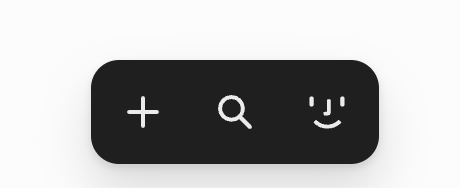
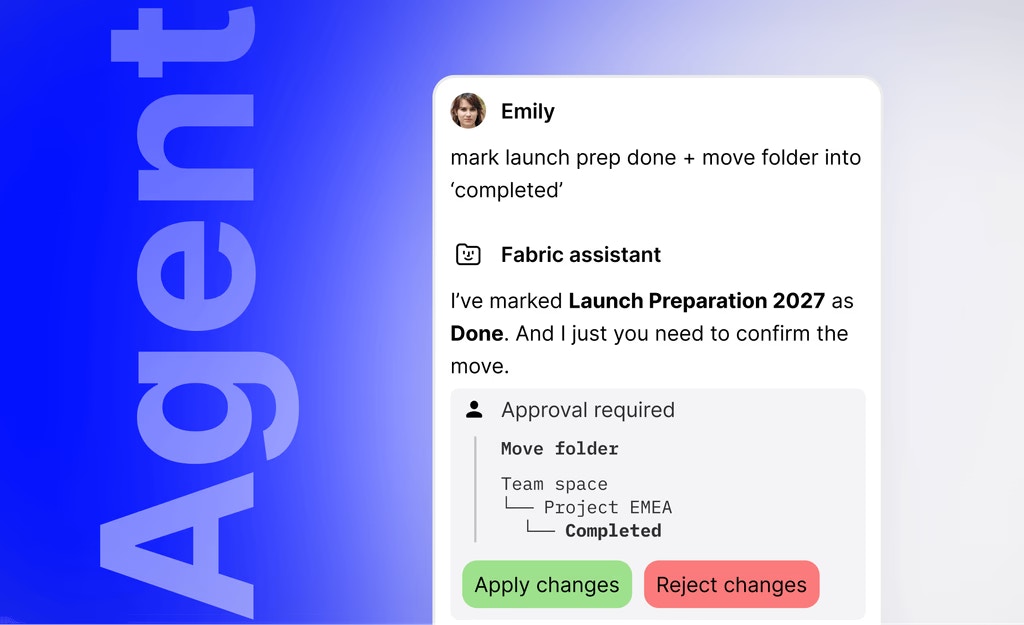
Assistant can help or even do work for you
You can ask Fabric Assistant to move files for you, add tags, rename files, create notes, edit notes, create tasks, and much more. When you ask Assistant to perform an action that modifies or deletes something, it will show you what it plans to do, and ask you to approve the action. That way, it ensures that you get the outcome you want. When it asks for approval, it will show the following buttons:
Creating a new chat
To create a new chat at any point, just click [New chat]. Your previous chat and all before it are available in your chat history.Chat history
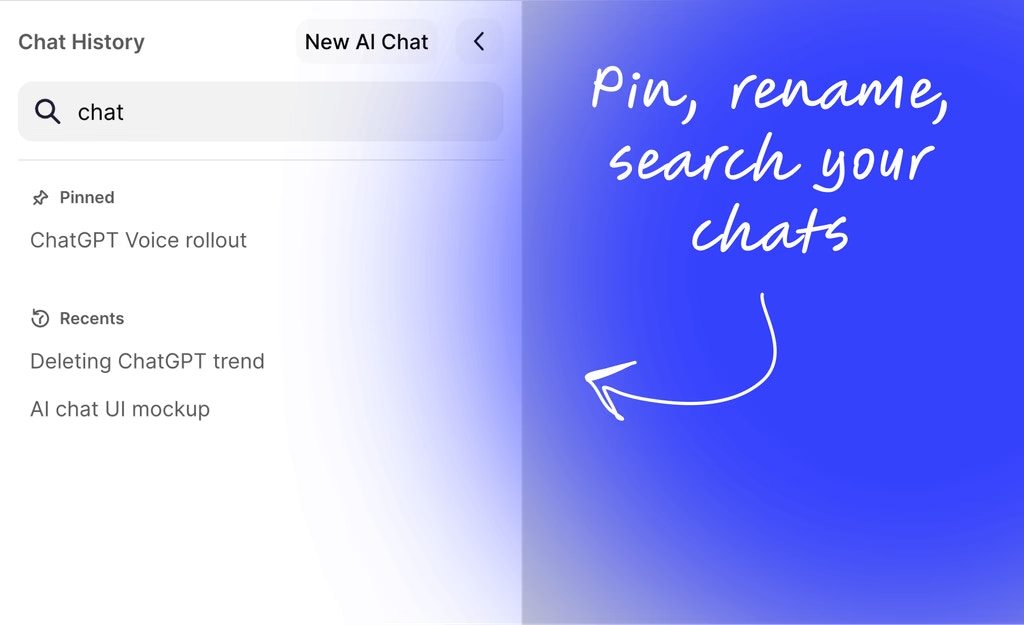
Just click the button to see your chat history. Inside your chat history you can:- Pick and resume a past chat at any point, or review the conversation. You can start a new chat at any time, saving the previous to your history.
- Pin a chat to the top, making it easily accessible for later.
- Chats automatically get named, but inside the chat history you can manually name them if needed.
- All chats in the history are searchable by the chat’s name.