

Documentation Index
Fetch the complete documentation index at: https://user-guide.fabric.so/llms.txt
Use this file to discover all available pages before exploring further.

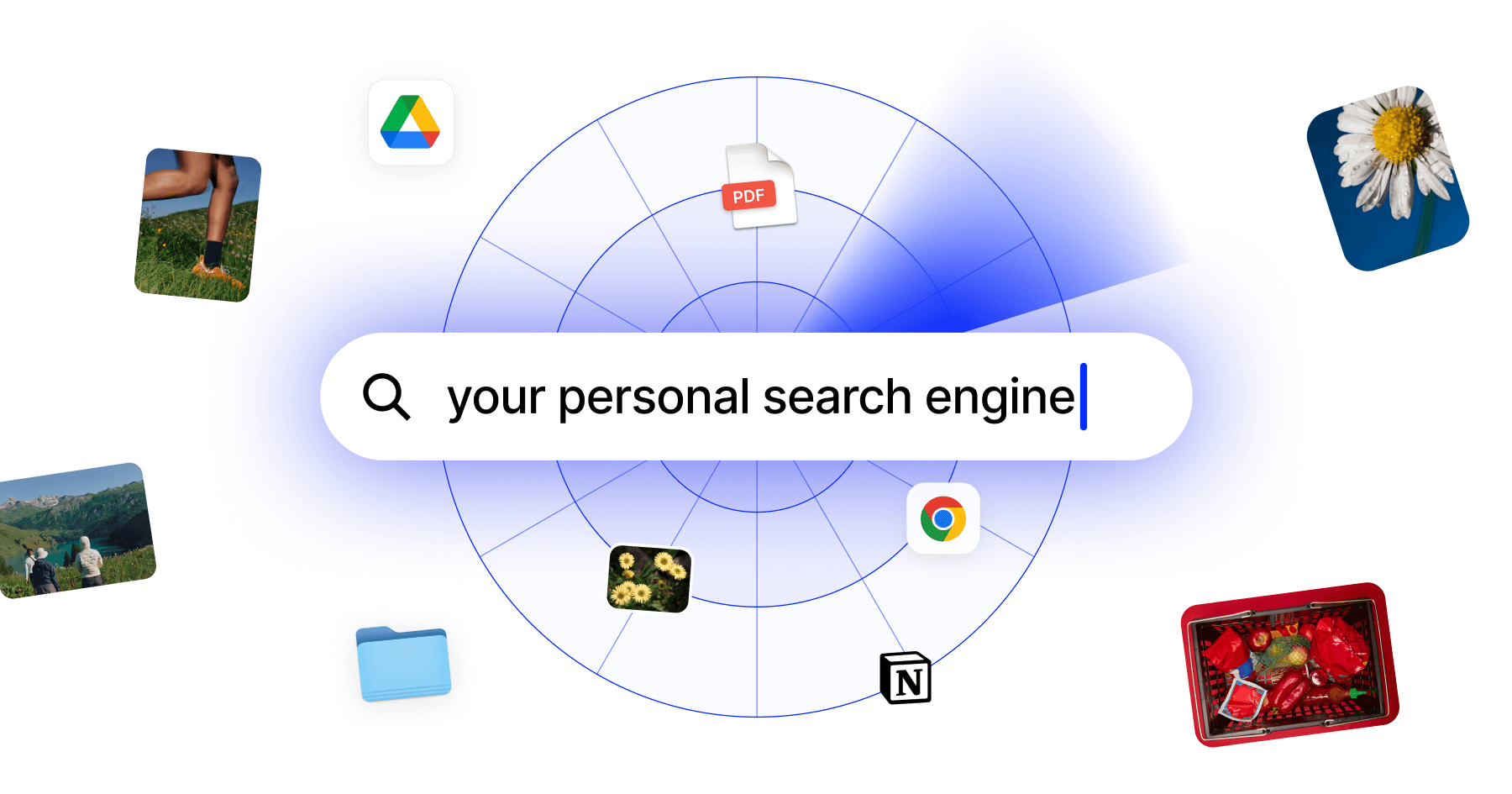
Search across all your apps and clouds
If you’ve connected any external data connections (Google Drive, Dropbox, Gmail and more), then making a search in Fabric will also try to fetch results from these sources.- If a data connection is ‘search-only’, then the search will be keyword-based, using the data source’s API.
- If a data connection is a ‘connected-source’, then it’s fully indexed by Fabric, and can be searched semantically (by meaning, and the contents of the file).
How does Fabric’s search work?
- Just describe what you are looking for in your own words.
- The more descriptive you can be, the more likely that the search will be able to match the ideas, concepts and themes in your search.
- If you want an exact match, just wrap the query in quotes. For example: “research”. This will only return results that specifically include that word.
- Fabric’s search combines multiple factors to improve relevance beyond just the query itself, so that your searches find what you are looking for, despite the huge volume of data.
How to use AI similarity search
- From any opened file inside Fabric, click the
⋮(3 dots) button and clickExplore similar files. - Fabric will use that file as the search query and find the closest matches to it. A new way to explore your data via similarity.
Search by color
- Use a color picker to find images, designs, and documents containing specific colors - perfect for brand consistency.
- Just click the color wheel in the search overlay, and then paste in a Hex colour, or drag within the color picker.
- Fabric will find the closest matching colored media for you.
Reverse image search
- Upload an image and Fabric will find similar images and content. Reverse image search for your library of content.
- Just open the search view and click the camera icon to upload an image for the query.
Media content search
- Just ask Fabric Assistant and it will search the transcript of audio, video files, and YouTube, finding specific timeframes within the media for you to hop straight into.
- Just click the timestamp to hop to that location in the media.
- No more hunting around for specific scene.
Search filters
- A search doesn’t need to include text, you can start just from file attributes, such as any tags, parent folders, or the kind of file that it is.
- You can also apply these filters to any other type of query, narrowing the results down.
Search UI controls
You can customize Fabric’s search view to your needs. There are multiple view modes in search:- Grid – shows a grid, ideal for most content
- Masonry – shows vertical columns, ideal for image/visual content
- Detailed – shows a list of deeper information with medium thumbnails
- List – granular information with customizable columns of key information
- You can zoom in or out as needed, making it easier to evaluate the content you are looking for.
- You can also toggle on and off visual attributes about grid or masonry cards, as well as whether the external search panel is visible.