

Documentation Index
Fetch the complete documentation index at: https://user-guide.fabric.so/llms.txt
Use this file to discover all available pages before exploring further.

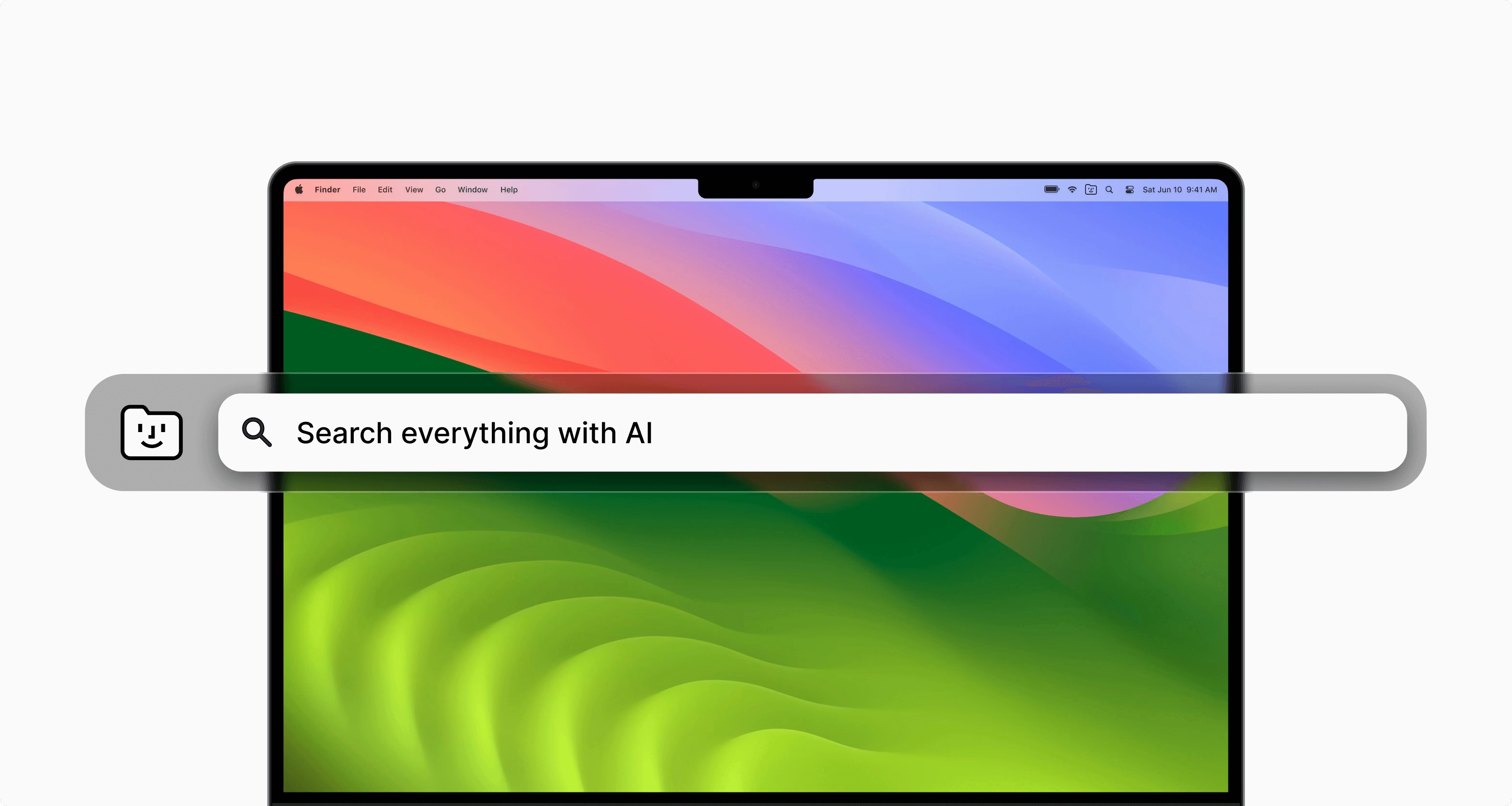
Get the desktop app
MacOS
Get the desktop app
Windows
Get the desktop app
Linux
What can you do with the Fabric desktop app?
- AI meeting notes.
- Capture desktop screenshots.
- Sync files from your computer.
- Anything you can do in the Fabric web app.
Capture AI meeting notes with the desktop app
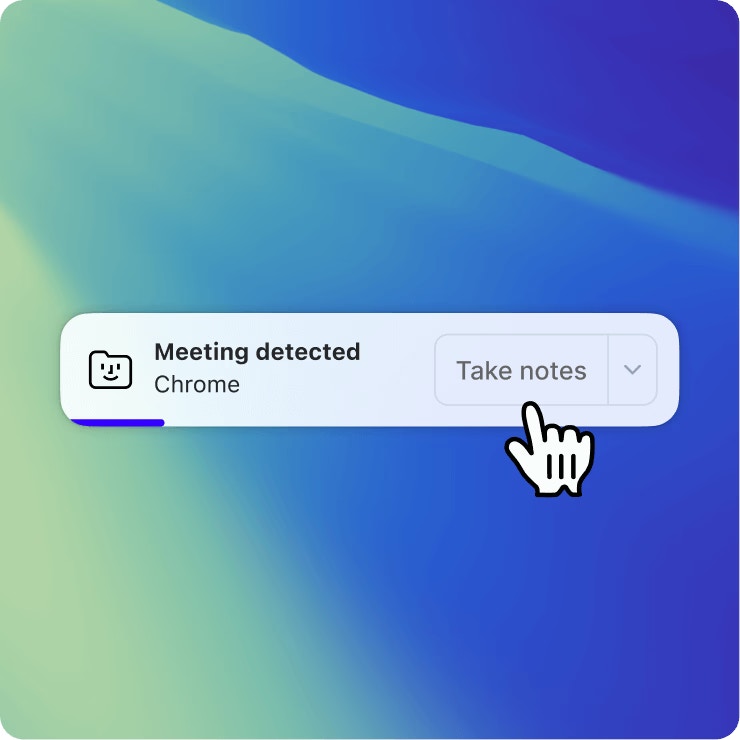
With built-in meeting detection. Fabric automatically detects that a meeting has begun and offers to begin transcribing it. You can also start meeting note capture at any time.- In order to be able to capture the other participants in a video, you will need to make sure to enable ‘System audio’ permission.
- Learn more about the feature in the meeting notepad page.
Important!
Remember to get consent from any parties that you decide to use the AI meeting notetaker with.
Remember to get consent from any parties that you decide to use the AI meeting notetaker with.
Instant search from your desktop
Capture desktop screenshots to Fabric
A fast way to save a screenshot directly to your Fabric.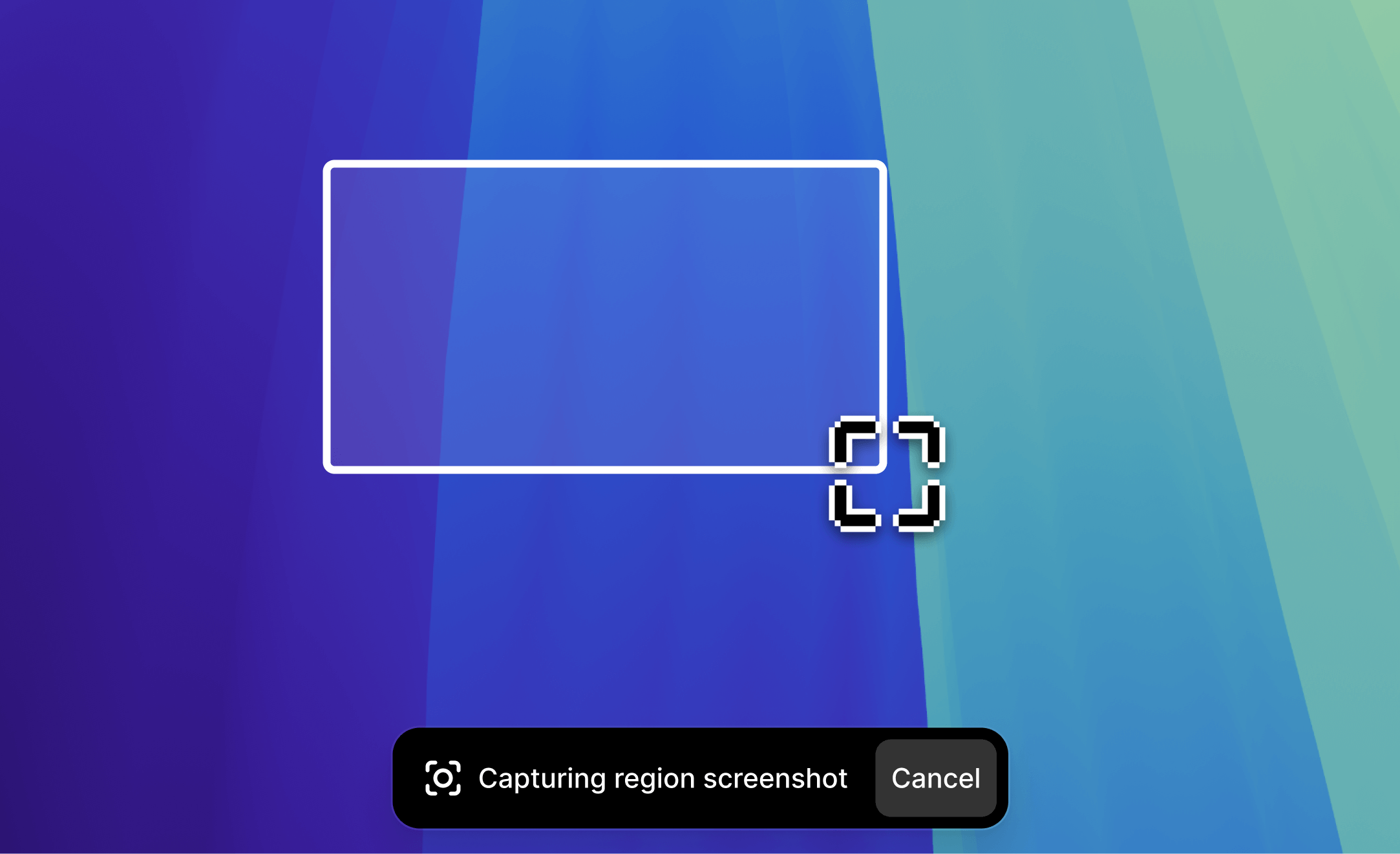
Sync files from your computer
Fabric desktop app lets you automatically sync files to Fabric and vice versa, with a dedicated Fabric folder that magically stays in sync.- Learn more about the feature in the sync and backup page.
.avif?fit=max&auto=format&n=HJdPON2hF4r3S8BG&q=85&s=d3e19adf68fe914d98fe8920693a5216)
Note: sync is only available on MacOS and Windows
Move faster with Fabric already at your finger-tips
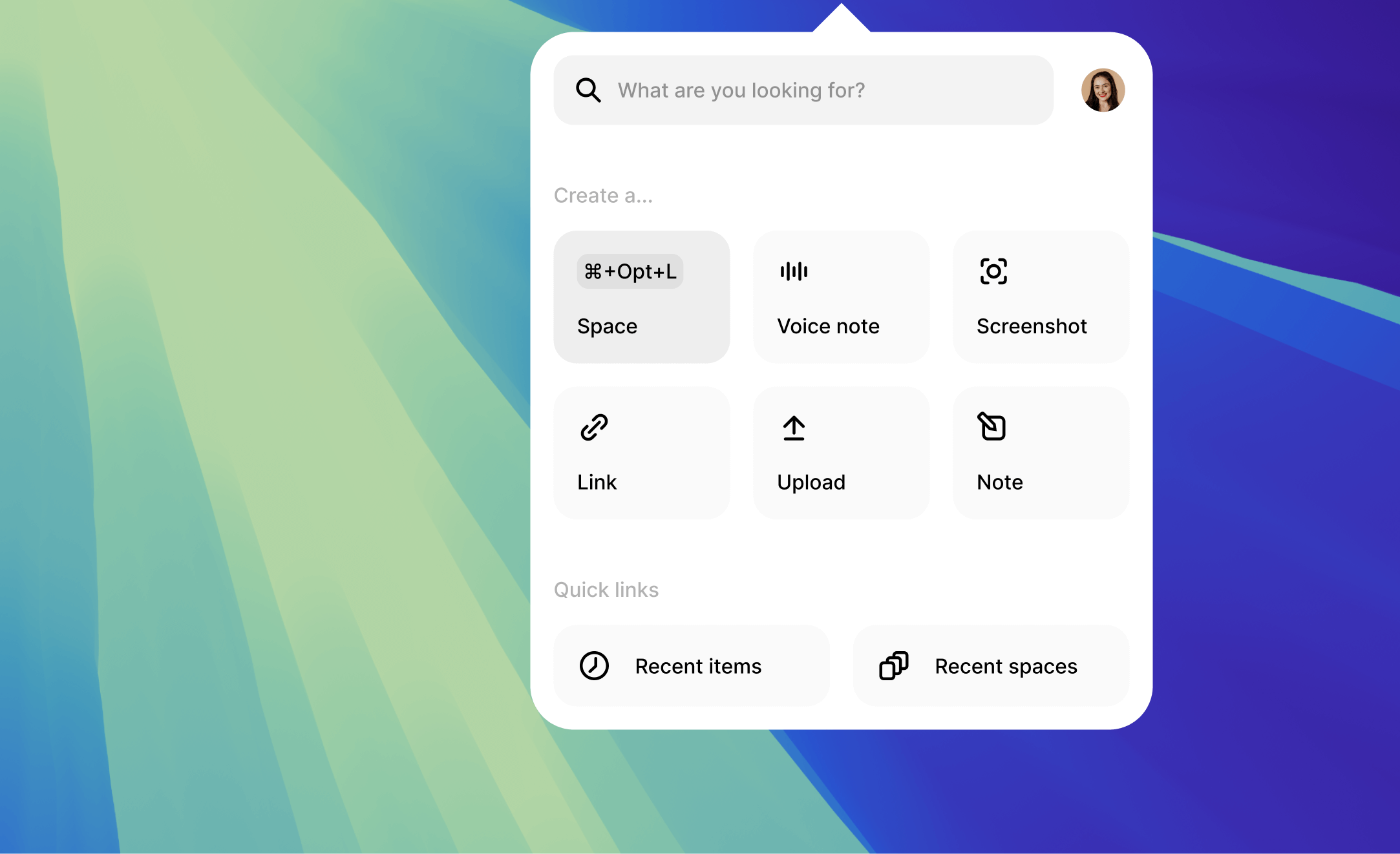
The Fabric desktop app puts key actions available in just a tap or shortcut, including:- Making a voice/meeting note
- Making a screenshot
- Creating a note
- Saving a link
- Uploading a file
- Making a space
Logging into the desktop app
- For the desktop app to successfully log in, it uses your browser for authentication, and you may be asked to log into Fabric in your browser to complete sign in.
- If you use a less common browser, it’s possible that this process might be interrupted. If in doubt, the safest bet would be to use Chrome to complete this sign in step.