Documentation Index
Fetch the complete documentation index at: https://user-guide.fabric.so/llms.txt
Use this file to discover all available pages before exploring further.

Setting an item as context
To set an individual item as context, just right-click it, or select the item withCtrl+click. You can then choose to Add to Assistant context which adds it to whatever is the current context – you can add multiple things progressively in this way.
Or you can choose Ask about item and the item becomes the only thing in the Assistant’s context. Good if you want to have a focused discussion.
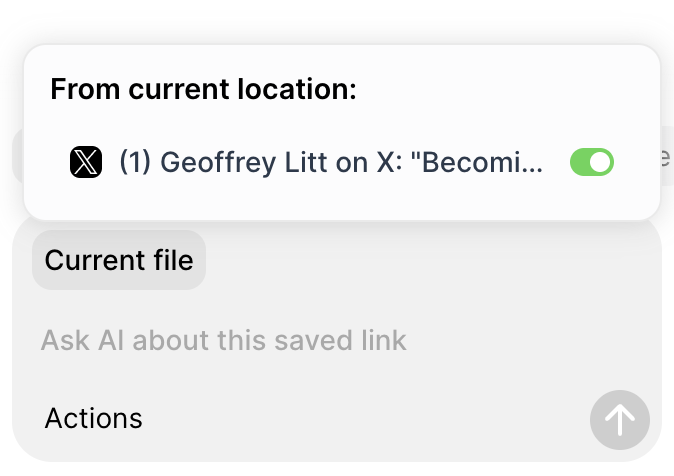
If you activate the Assistant when an item is opened, it is immediately available to the Assistant context (or is likely even already set). If so, you can click the toggle to add/exclude from current context.
Setting a selection as context
When you select multiple items in Fabric (by dragging, or holdingCmd /Ctrl and clicking), the floating bar will offer options for adding the selection to the Assistant context, or you can also access the Ask AI options by right-clicking any of your selected items.
Setting a folder or space as context
When you’re in a space or folder and you open the Assistant, that current space/folder will be available to the Assistant context, and automatically applied if there is no active chat yet. You can always toggle the folder/space’s inclusion in the context.Setting highlighted text as context
Inside Fabric’s text editor, you can select text and then send it directly to the Assistant, setting it as context, adding it to the existing context, or summarizing the highlighted text.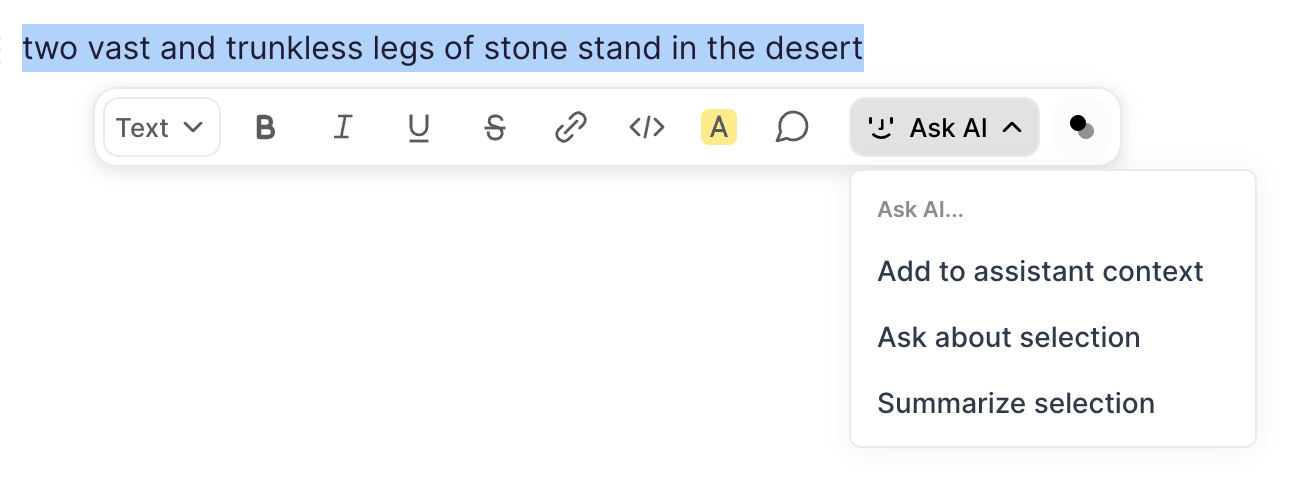
Managing context
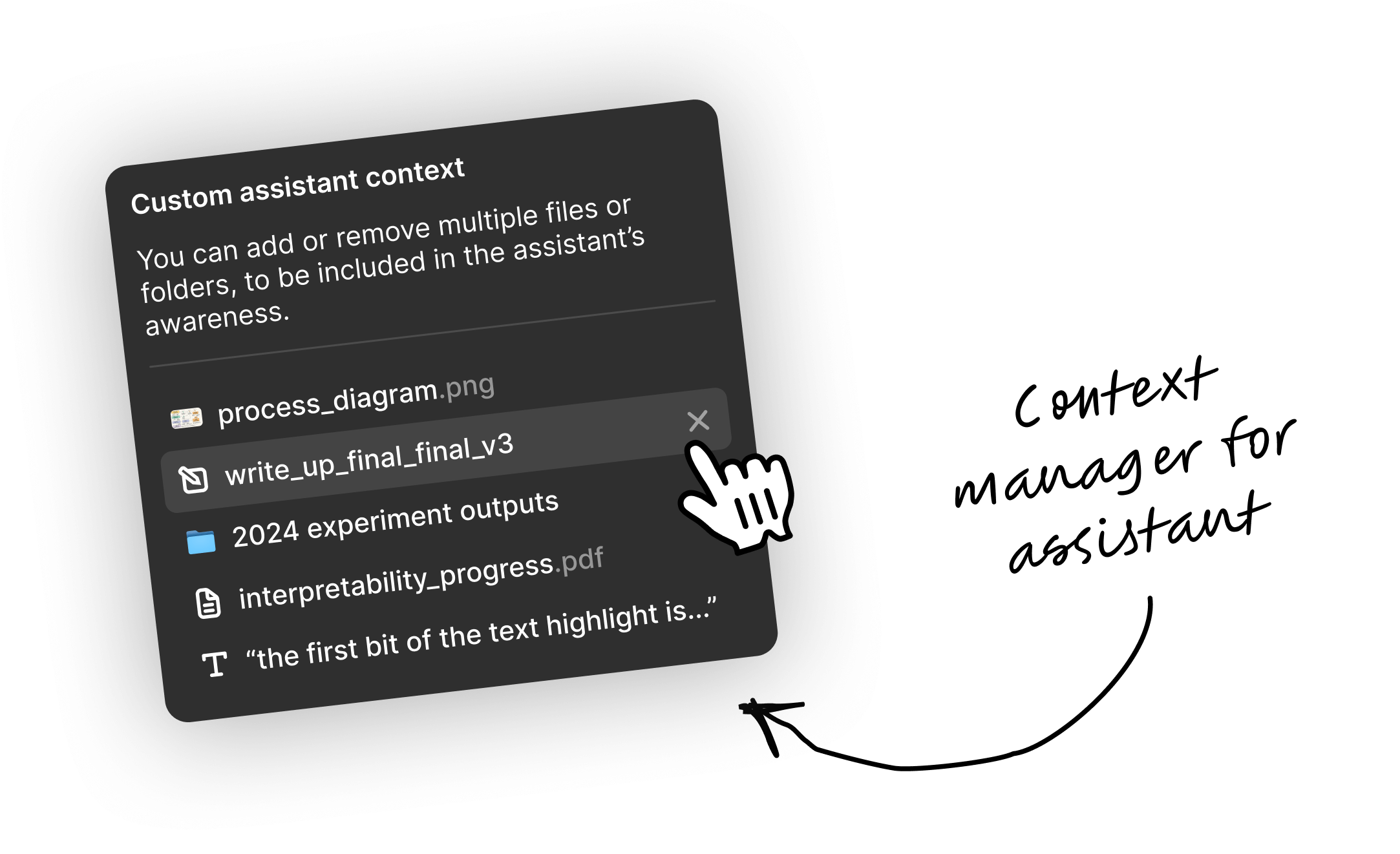
Inside the Assistant, you can see any context attached at the present moment by clicking the grey button in the top left. If there is no grey button, no context is currently set. For context that comes from the folder or item you currently have open, you can toggle its inclusion with the toggle button. For anything else (e.g. that you manually attached to the context), you can hover and click the on the right to remove it.