Documentation Index
Fetch the complete documentation index at: https://user-guide.fabric.so/llms.txt
Use this file to discover all available pages before exploring further.
Add anything, in any way (yes, really)
In Fabric, you can add anything, in your own way.- Drag any file, link, or image into Fabric to save it.
- Paste any link, text, image or file to create them inside Fabric.
- Make notes, upload any file, save any link.
- Connect your favourite apps and cloud drives (we’re adding to the ones we support all the time).
- Email content to your Fabric.
- Save to your Fabric via MCP.
Context menu
Right click anything
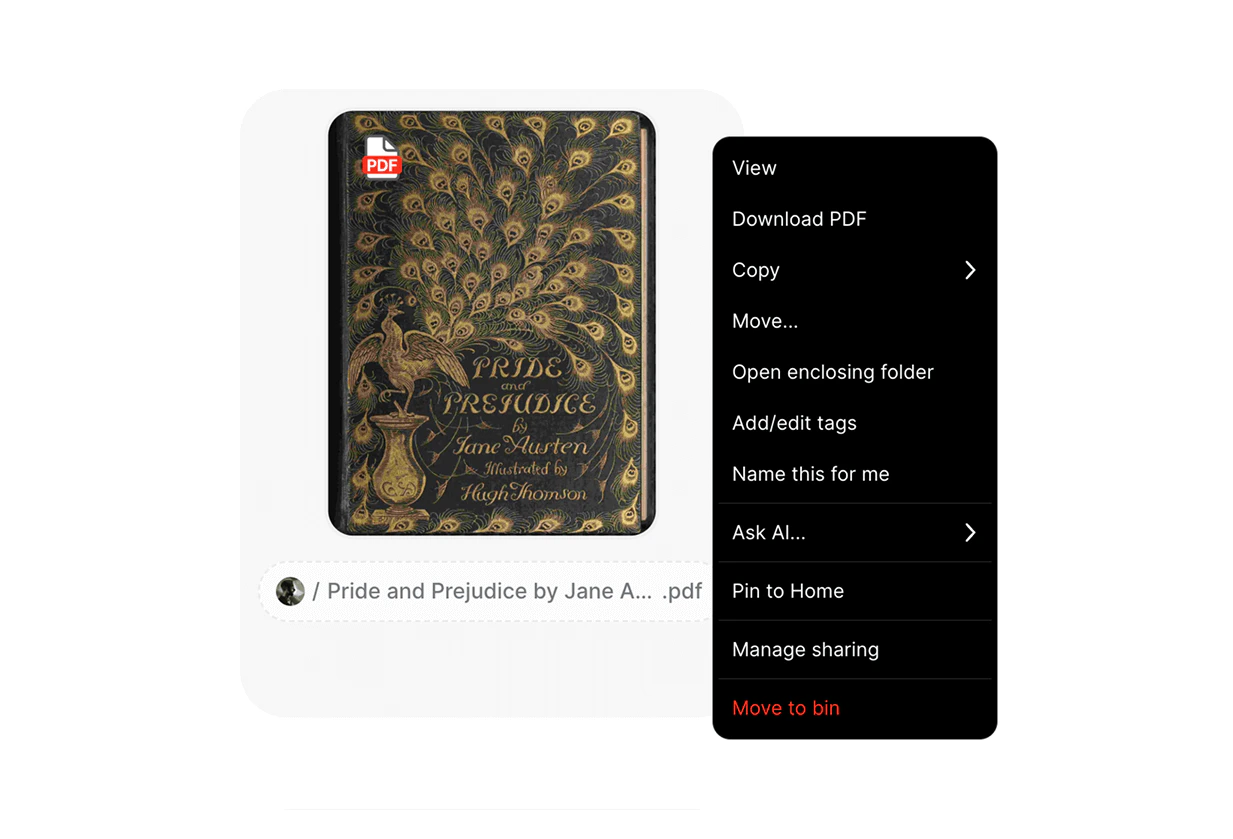
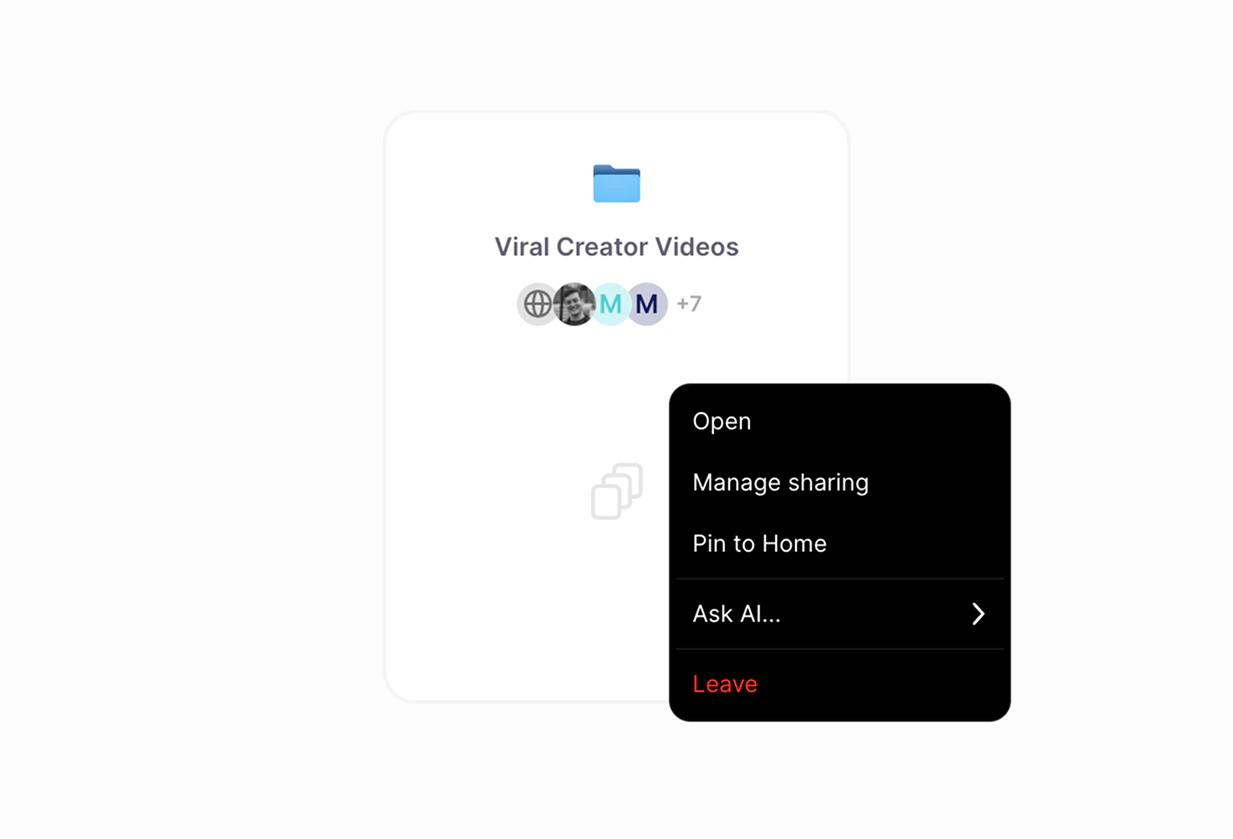
In Fabric, you can right-click any item or space to see a menu of options you can perform on it. Depending on the item, you’ll be offered different options, for example, if it’s a bookmark, then one option will be to visit the URL of the bookmark. Context menus also work when multiple items have been selected, or in an empty space.How do I use context menus in Fabric?
An example item context menu
An example folder/space context menu
Drag / multi-select
Perform bulk actions by holdingCMD (Ctrl on Windows) or shift+clicking, or even just simply dragging across multiple cards. They will become selected and you can right-click to perform bulk actions on them.
How can I use multi-select?
Using your keyboard: You can also simply drag your mouse to select multiple items or spaces easily. Once selected, you can use the context menu or the floating bar at the bottom of the screen to perform actions with your selection (share, tag, move, delete). Drag to multi-select spaces
Simply drag your mouse to select multiple space..png?fit=max&auto=format&n=yoL6aIjypdiFjN5X&q=85&s=b63a59e2a9097c4c049bd3cb4481525e)
Drag to multi-select items
Simply drag your mouse to select multiple items of any kind.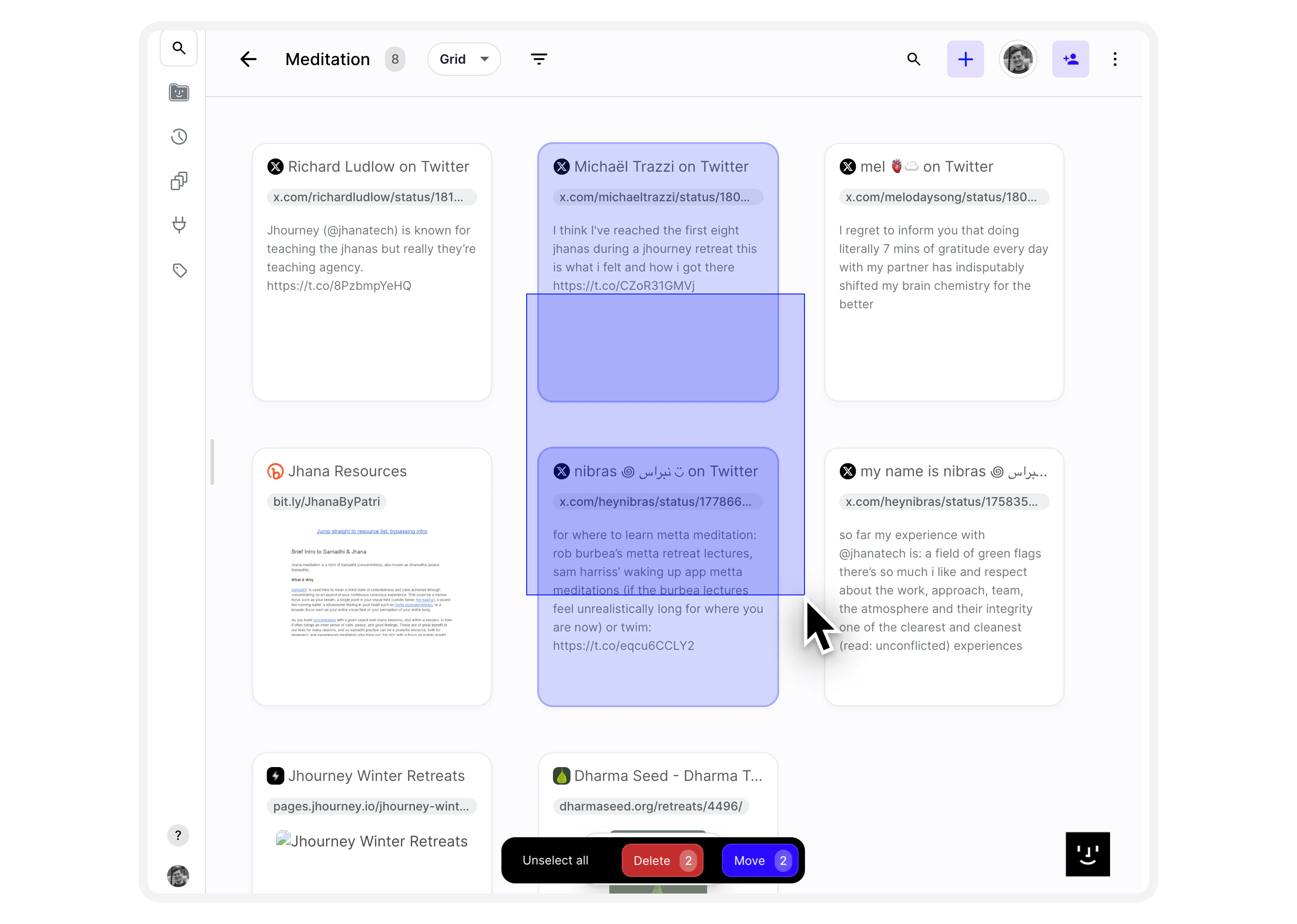
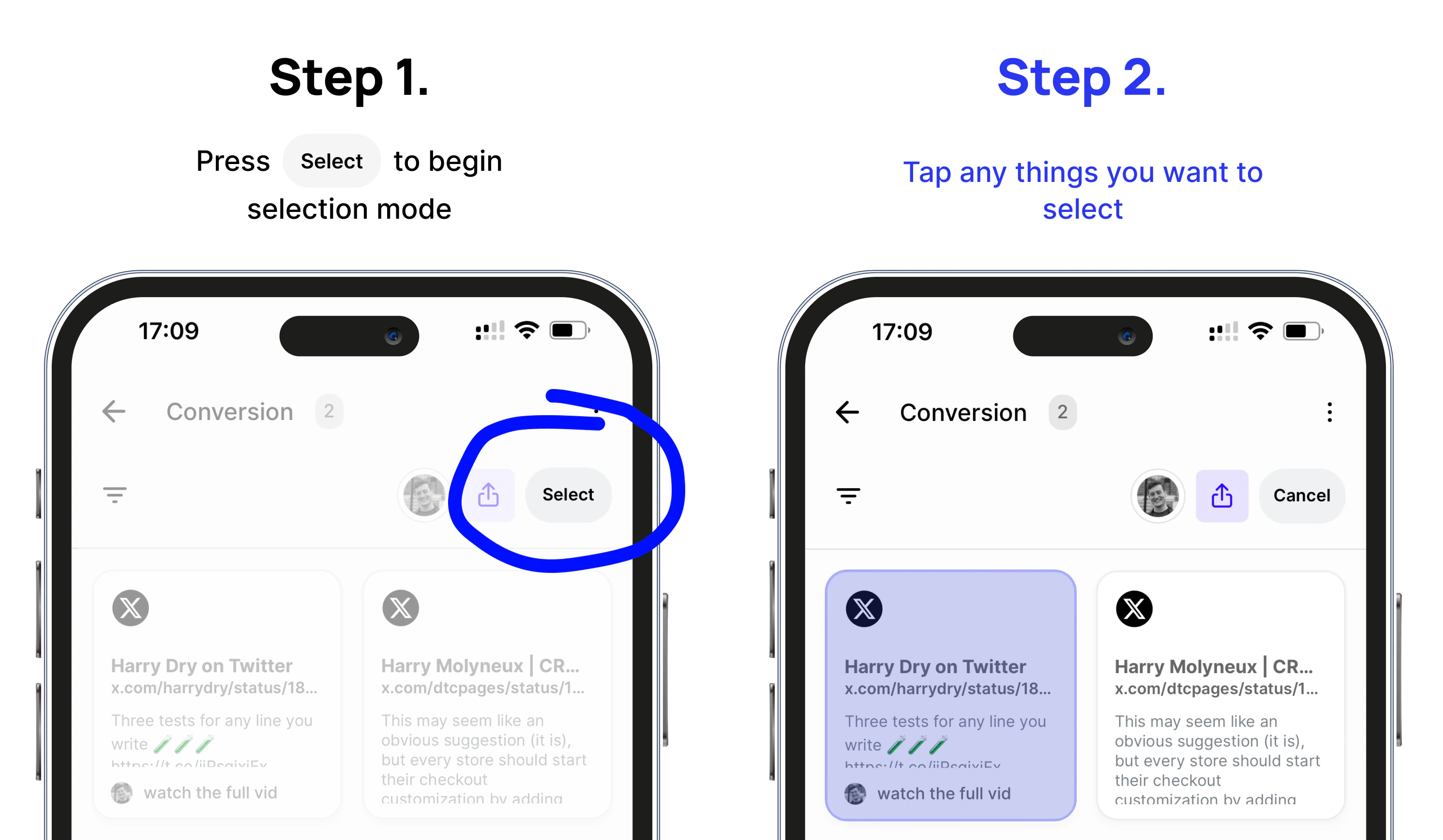
Mobile multi-select
Mobile selection works slightly differently – there’s a button that toggles selection mode.