

Documentation Index
Fetch the complete documentation index at: https://user-guide.fabric.so/llms.txt
Use this file to discover all available pages before exploring further.
About Fabric AI meeting notes
- Just click
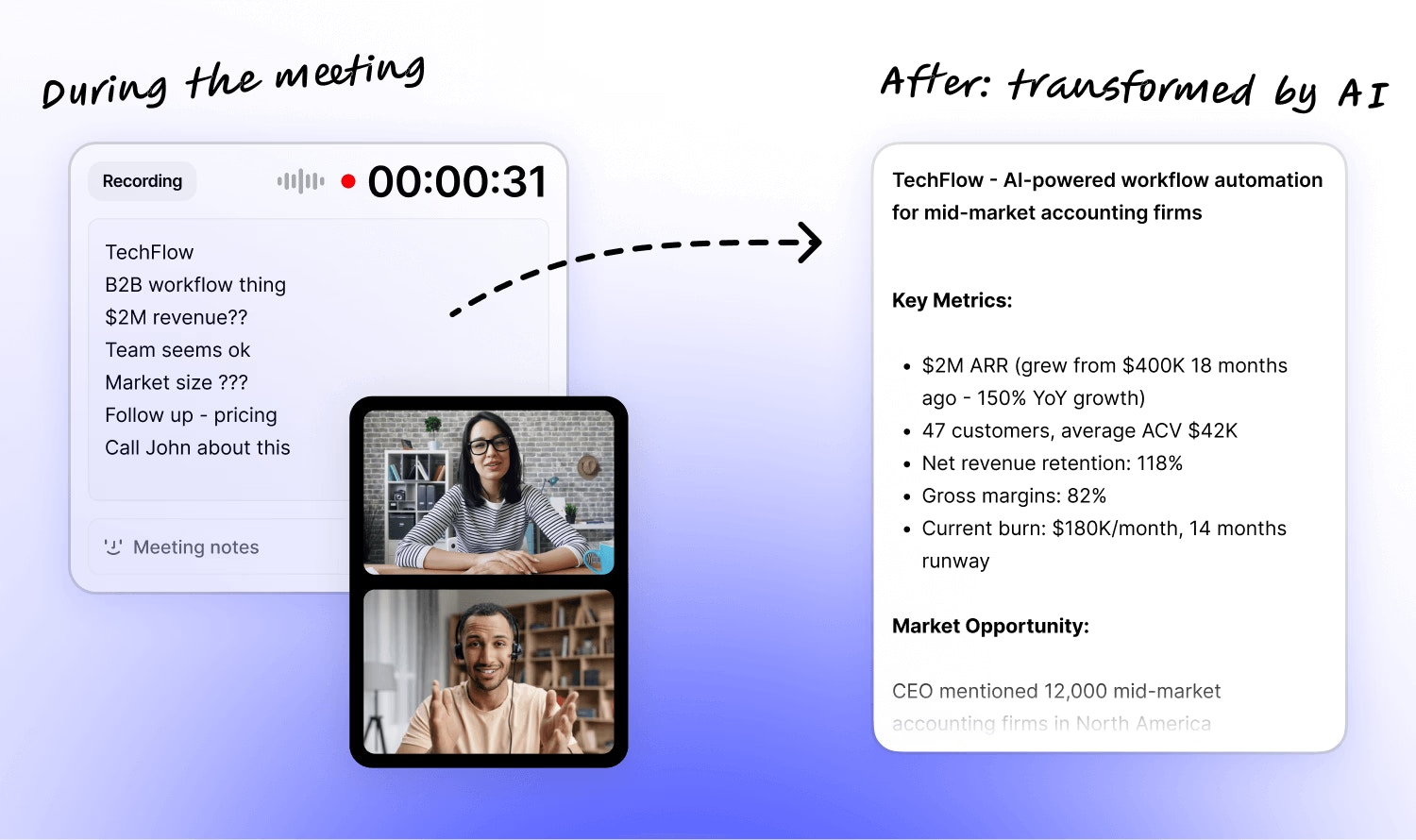
Recordand Fabric will record and automatically transcribe your meeting. At the end of the meeting, Fabric will automatically generate a summary and attach the audio recording. - Fabric can even detect that a meeting is happening and suggest recording a meeting note, in just one click.
- You can make notes before, during and after the meeting – they get combined into your useful AI meeting summary.
No meeting bot needed
During the call, Fabric can capture from your computer and microphone’s audio – there’s no need to invite a spooky additional participant to the meeting. Detection works in the following apps:- Chrome: Google Meet, Microsoft Teams, Zoom
- Firefox: Google Meet, Microsoft Teams
- Native app: Zoom
Important!
Remember to get consent from any parties that you decide to use the AI meeting notetaker with.
Remember to get consent from any parties that you decide to use the AI meeting notetaker with.
How do I use it?
- We record installing the Fabric Desktop app to benefit from features like meeting detection, and high quality capture of other meeting participants.
- Just click to create a Meeting Note, and you’ll be offered to start recording.
- You can even make notes before, during, or after the call.
- While recording, the audio will be continuously transcribed, and you’ll see live captions as it transcribes.
Meeting detection
Fabric automatically detects that a meeting has begun and offers to begin transcribing it. You can also start meeting note capture at any time.- In order to be able to capture the other participants in a video, you will need to make sure to enable ‘System audio’ permission.
Templates
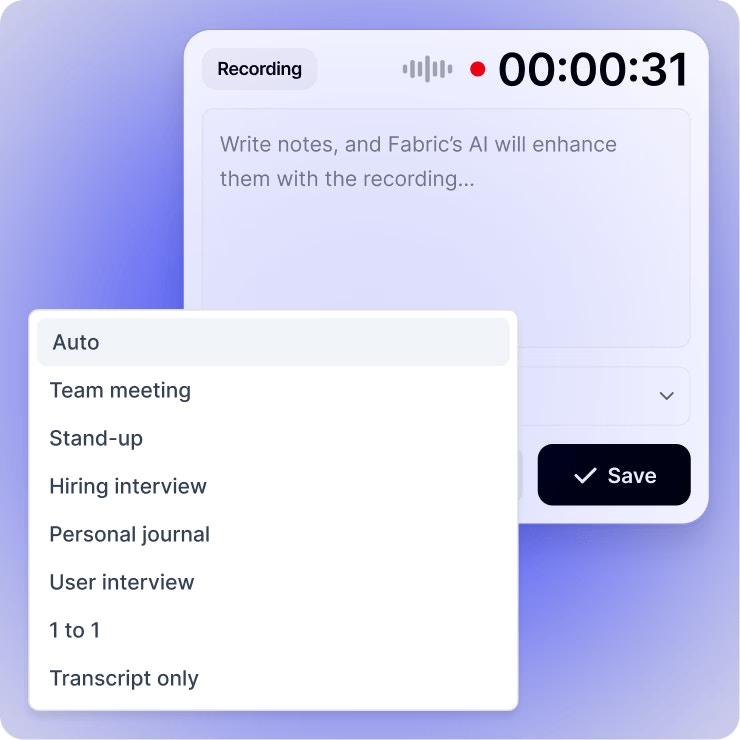
Choose from powerful templates. Select a template for Fabric to turn your notes into, so you get the perfect output from your meeting. By default, the selection isAuto , which automatically tries to determine the ideal output format and use that.
If you want to change the format later, you still can! Just choose the new template you want, and it will regenerate the Meeting Summary for you.
Transcript & recording
- During a meeting, the transcript is continuously generated for you. You can even search it during the meeting, so you can circle back on a point, or fact check something.
- After the meeting, you can still review the exact conversation transcript, search it, or even edit it to clarify any points.
- If needed, you can click to regenerate the AI write-up of the meeting, changing it to a particular template format, or incorporating any further changes.
- After the meeting, the recorded audio is also available to play and use as needed.
Need to resume or continue? You can.
Just clickResume to continue recording. The transcript will continue generating and adding to the document, and after recording, the additional audio will also be added to the transcript.
The AI summary will be automatically be re-generated, but you can also click to force this if needed.
Chat with your meeting notes
Click on the Assistant icon to chat with your meeting notes. The Assistant can see the contents of the transcript and summary, helping you to find any information you need – in the current note, or in any other. You can even ask about the current meeting whilst it’s still happening.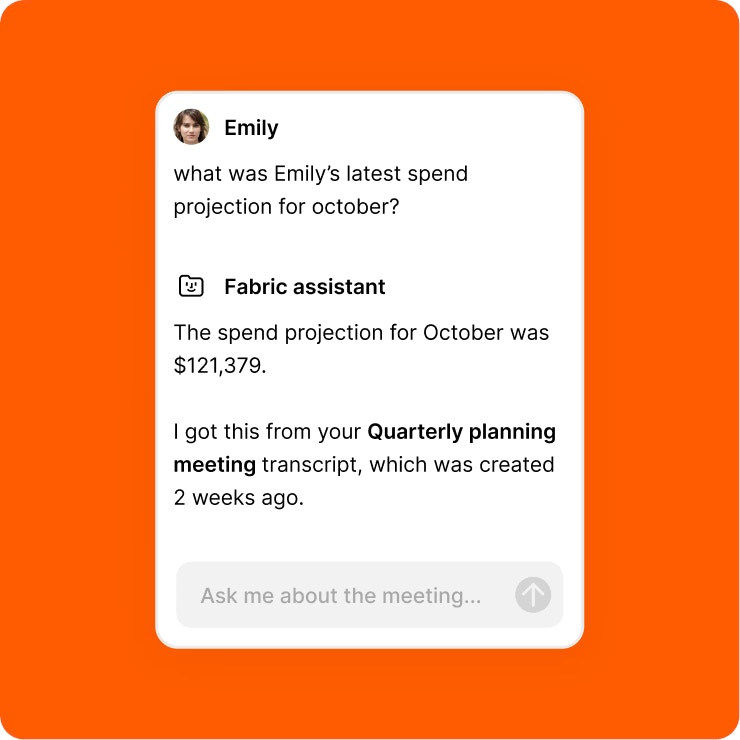
Share your notes
By default, meeting notes are private to you – no one else can see them unless your move them into a shared space or folder. If you want to share directly with anyone, you can just clickShare and invite anyone you want. They don’t need to have a Fabric account to view the meeting notes, but they do need a Fabric account to comment and edit.